Your candidates
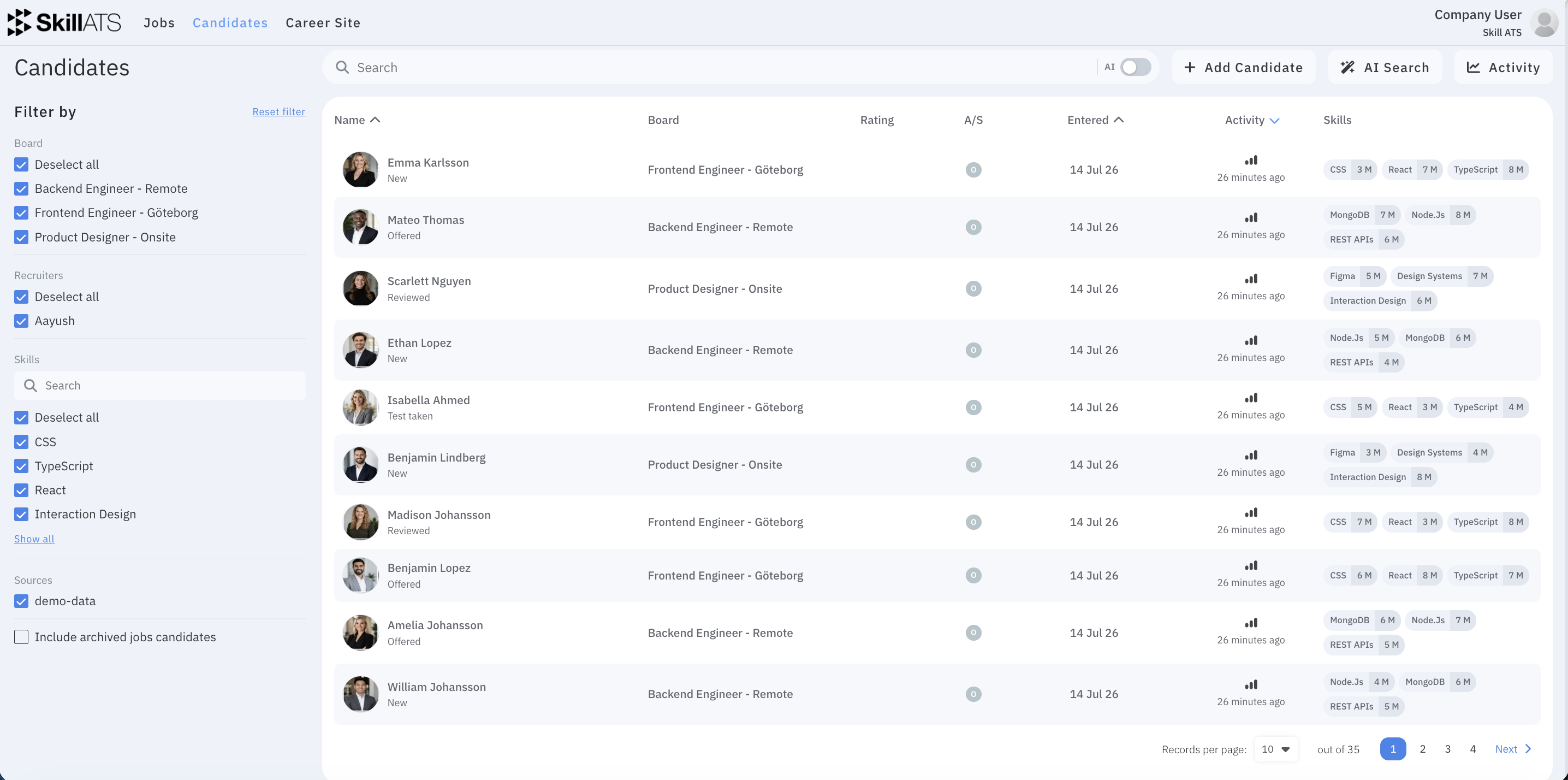
Open Candidates in the top menu to see everyone in your company talent pool — across jobs and stages.
What you can do
- Search and filter the list
- Add a new candidate
- Open someone to see their full record
- Start AI Search when you want SkillATS to find matching people for you
Add a candidate
Click Add Candidate to open the Add new candidate wizard. It has a step bar on the side, and each step ends with Save and Continue (the last step reads Submit). You can click a completed step in the side bar to go back.
You can also start this from a board (Add Candidate, or a stage menu → Candidate), which pre-selects the board and stage for you.
Step 1 — Upload CV
Drag and drop a CV, or click the drop area to browse.
- Supported formats: PDF, DOCX — maximum size 5 MB
- Added files are listed so you can Remove any before continuing
- When you continue, SkillATS reads the CV and tries to auto-fill the next steps (name, email, phone, location, projects, education). A short “fetching data” message appears while it works.
This step is optional — you can continue without a file and type everything yourself.
Step 2 — Personal details
Fill in the basic details. Anything read from the CV is pre-filled here so you only correct what’s needed.
| Field | Notes |
|---|---|
| Board and Stage | Required. Choose which board and which stage to add the person to. If you started from a board, this is already set. |
| Name | Required. |
| Optional here (validated if entered). | |
| Phone | Optional. |
| Optional. | |
| Country and City | Optional. |
If something required is missing, SkillATS highlights the field and shows a short message (for example “Name is required”).
Step 3 — Quick questions (only sometimes)
This step appears only if the chosen board or job has quick questions set up. Answer the short questions (text, dropdown, choices, or sliders). Questions marked with * are required, and the answers contribute to the candidate’s questionnaire rating.
If the board has no quick questions, this step is skipped and you go straight to Other info.
Step 4 — Other info
Add anything extra. All fields here are optional.
- Cover letter — upload a PDF/DOCX (drag-and-drop, max 5 MB)
- Personal letter — free text about the candidate
- Upload image — a profile photo (PNG/JPG, max 5 MB); you can crop it after selecting
- Company and Projects — add roles with company and dates; use +Add job for more, Remove to delete
- Education — add degrees, school, city, and dates; use +Add education for more
Finish
Click Submit on the last step. SkillATS creates the candidate, shows a Candidate added successfully confirmation, and opens their record. If something goes wrong, the wizard stays open so you can fix the details and try again.
Privacy
When someone’s data is due for deletion under your retention rules, they appear on a separate list linked from Settings. See Privacy and GDPR.