Candidate details
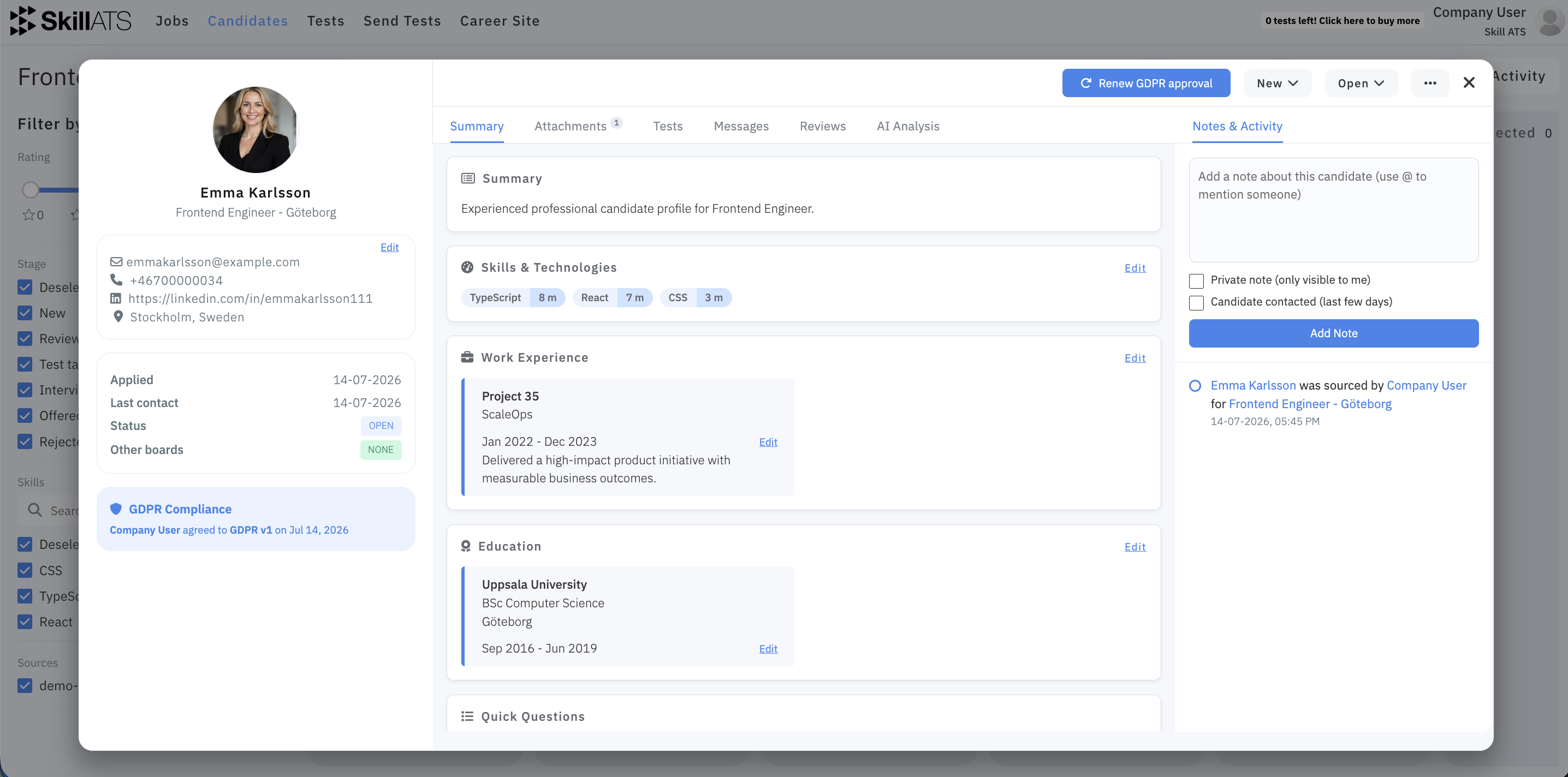
Click a candidate from the list, board, or AI Search results to open their record. The same view opens as a card on the board or as a full page.
What’s on the page
Left side
- Photo, name, and board
- Contact details (email, phone, LinkedIn, location) — use Edit to change them
- Dates: applied, last contact, and reminder (if set)
- Status (Open, Hired, or Rejected)
- Whether they appear on other boards
- GDPR compliance summary
- Overall rating (from quick questions, reviews, and tests)
Top bar
- Renew GDPR approval
- Stage dropdown (move them on the current board)
- Status dropdown (Open / Hired / Rejected)
- … menu — Copy card, Move card, Copy link, Reminder, Remove from job
Main tabs
Summary · Attachments · Tests · Messages · Reviews · AI Analysis (when linked to a job)
Also always available: Notes & Activity
Copy card
Use … → Copy card when you want the same person on another board without removing them from the current one.
- Open Copy card.
- Confirm or edit the Name.
- Choose the destination Board and Stage.
- Under Keep, tick what to bring across: Attachments, Review, Notes, Messages (all on by default).
- Click Copy card.
You’ll get a confirmation when it’s done, and the new copy opens.
Move card
Use … → Move card to send the candidate to another board and remove them from the current one.
The form is the same as Copy card (name, board, stage, and what to keep). Confirm with Move card.
Tip
Prefer Copy if they should stay visible on both boards. Prefer Move if they should only live on the new board.
Reminder
Use … → Reminder to set a follow-up date and notify colleagues.
- Pick a date (past dates aren’t allowed).
- Select one or more colleagues to notify.
- Optionally add a short note.
- Click Set Reminder.
The reminder date appears on the left of the candidate page. If a reminder already exists, open the same menu item and choose Unset Reminder to clear it. Reminder notes also show up in Notes & Activity. On the reminder day, colleagues will get an email notification.
AI Analysis
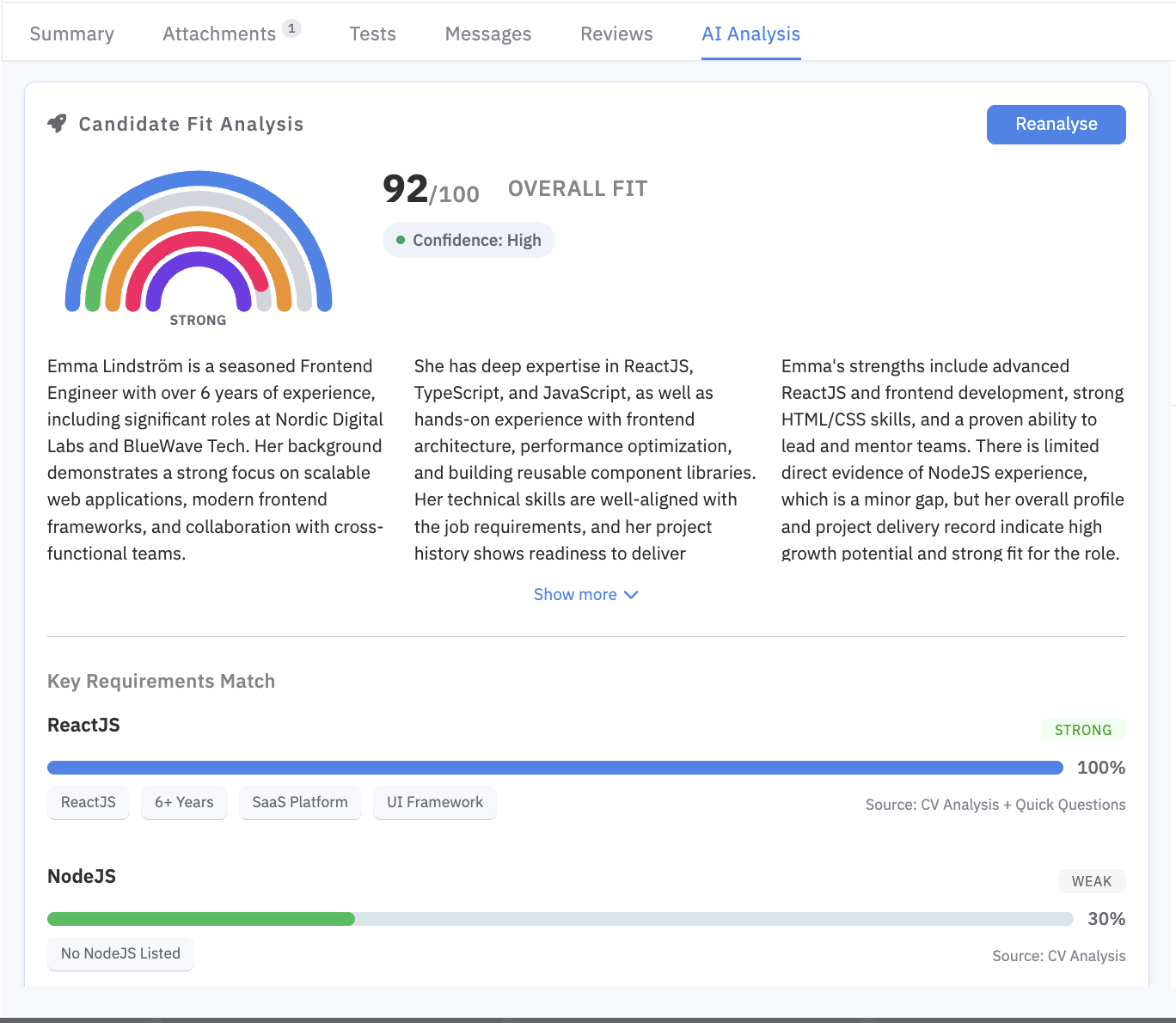
Open the AI Analysis tab (available when the candidate is on a job) for a Candidate Fit Analysis.
| Situation | What you do |
|---|---|
| No analysis yet | Click Analyse |
| Older text-only summary | Click Generate full analysis |
| Full analysis already exists | Click Reanalyse to refresh |
A full analysis typically shows:
- Overall fit score (out of 100) and confidence
- Short summary paragraphs (Show more / Show less)
- Key Requirements Match — how well they match each requirement, with strength and sources
- It fetches the requirements from the edit job page AI Analysis fields
Notes
Open Notes & Activity to leave comments for your team.
- Type your note. Use @ to mention a colleague.
- Optionally tick Private note (only visible to me) and/or Candidate contacted (last few days).
- Click Add Note.
Private notes show a P tag; contacted notes show a C tag. You can Delete your own notes.
Activity
In the same Notes & Activity tab, notes and system events appear together in one timeline (newest first), including things like stage changes and reminders. Use it as a quick history of what’s happened with this candidate.
Other useful actions
| Action | Where | What it does |
|---|---|---|
| Change stage | Top stage dropdown | Moves them to another column on this board |
| Hire / Reject | Status dropdown | Sets Open, Hired, or Rejected. Rejecting may offer to send an automatic rejection email |
| Copy link | … → Copy link | Copies a link to this candidate card |
| Remove from job | … → Remove from job | Removes them from this job (with confirmation) |
| Send tests | Tests tab | Send assessments and open results when finished |
| Attachments | Attachments tab | Upload, view, download, or delete CVs and files |
| Messages | Messages tab | Send and review email-style messages |
| Reviews | Reviews tab | Add or edit skill ratings and comments |
| Summary | Summary tab | Description, education, projects, skills/tags |
| Renew GDPR | Top button | Records that the candidate renewed privacy approval |
Profiles
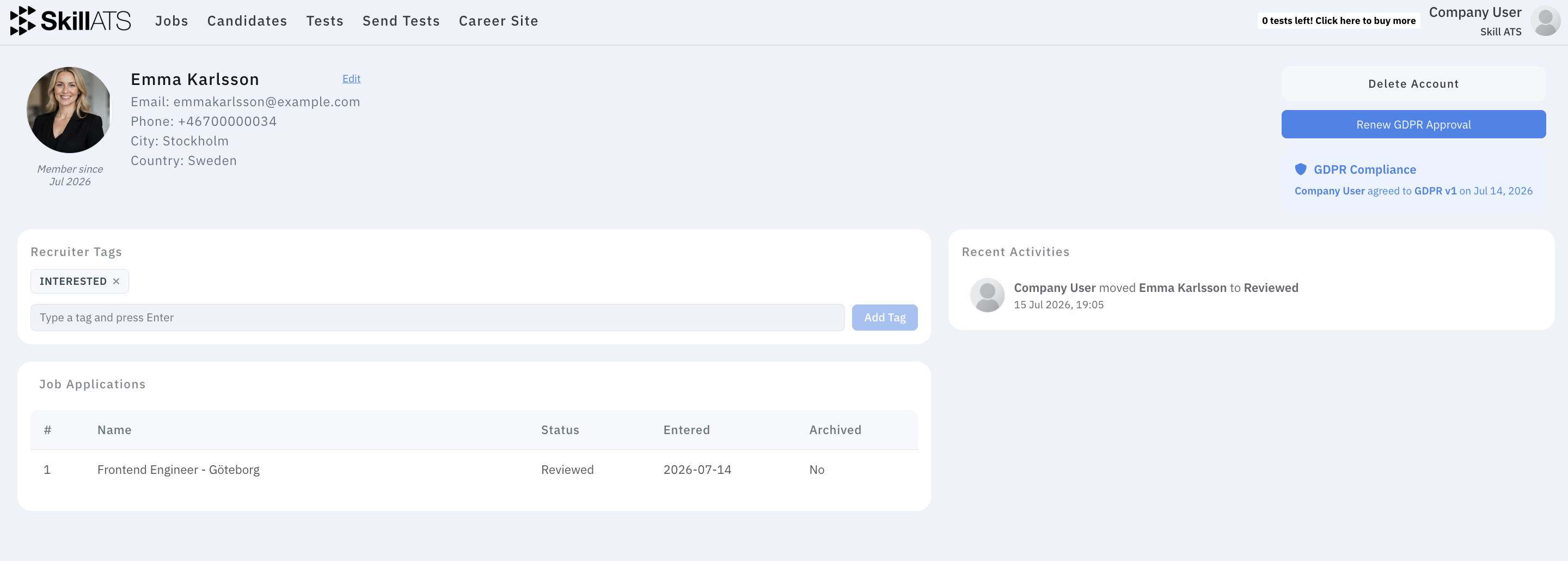
You can also open a fuller profile for a candidate (tags, applications, and more). Your own recruiter profile is where you manage account details and AAA.